What data can be exported?
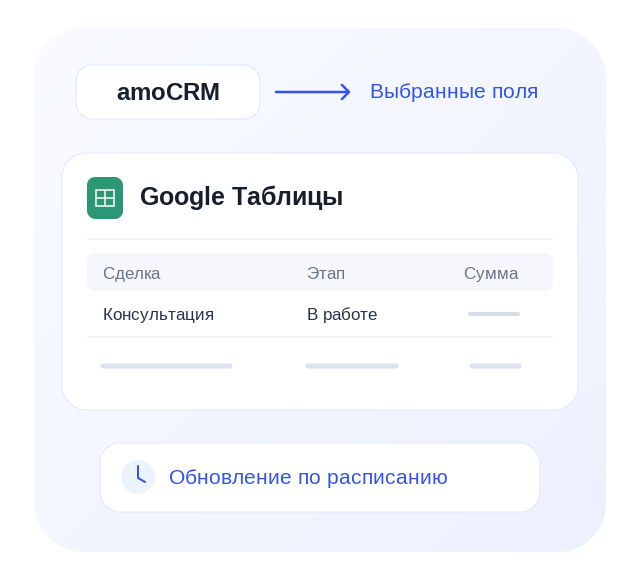
Deals, contacts, companies, tasks, notes, calls, events, products, invoices and other supported amoCRM entities. For deals, you can add data from related contacts, companies and products
Can I use an existing Google spreadsheet?
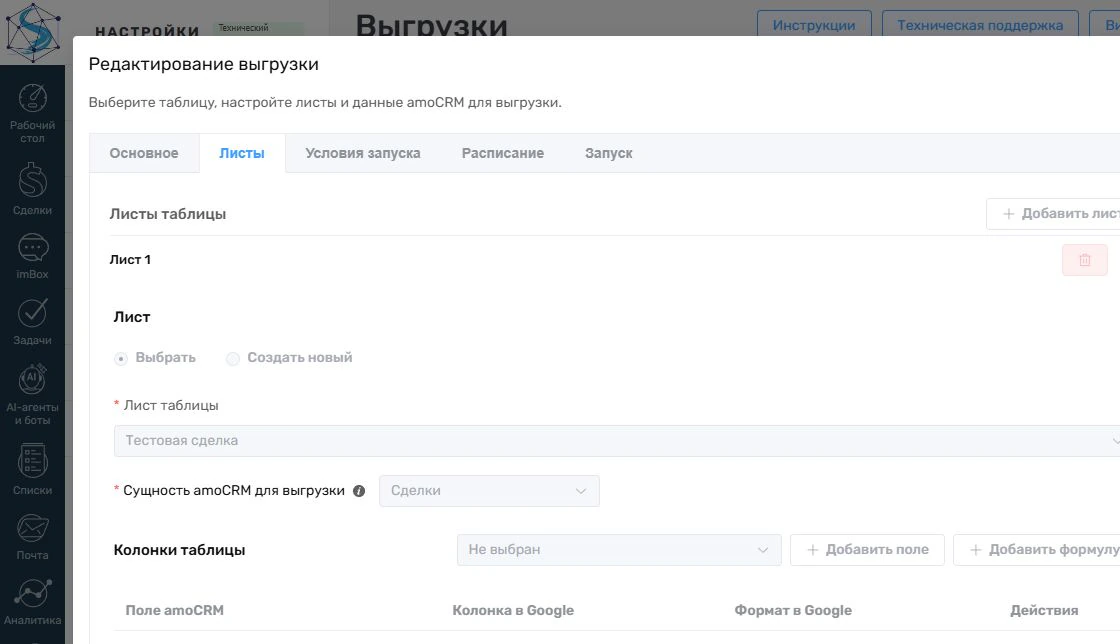
Yes, select an available file from your connected Google account or create a new table. After the first launch, the file and sheets are assigned to the upload. For another file or sheet, create a new upload
Is it possible to upload data onto multiple sheets?
Yes, you can configure several sheets with different entities in one upload. Each has its own columns, formats and calculated values.
Can I select and rename columns?
Yes, you can change the order, names and format of columns, hide them and add formulas. Up to 100 columns are supported on one sheet. The ID is added automatically for string matching: it can be hidden, but cannot be removed
How do I export only the deals I need?
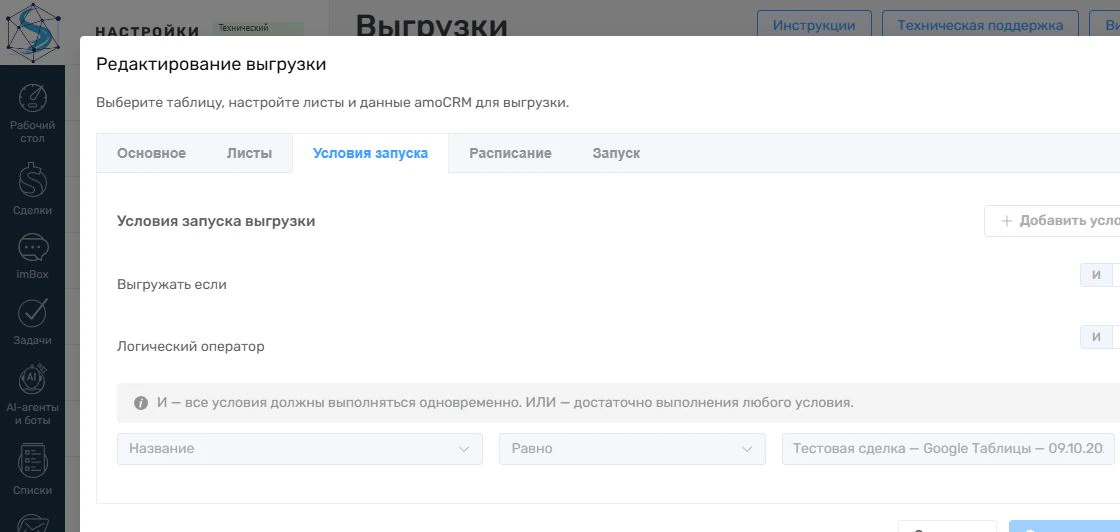
Set up conditions for amoCRM fields with AND and OR logic. Comparisons of text, numbers and dates are available, including relative periods. If there are no conditions, all available records of the selected entity are downloaded
How often can data be updated?
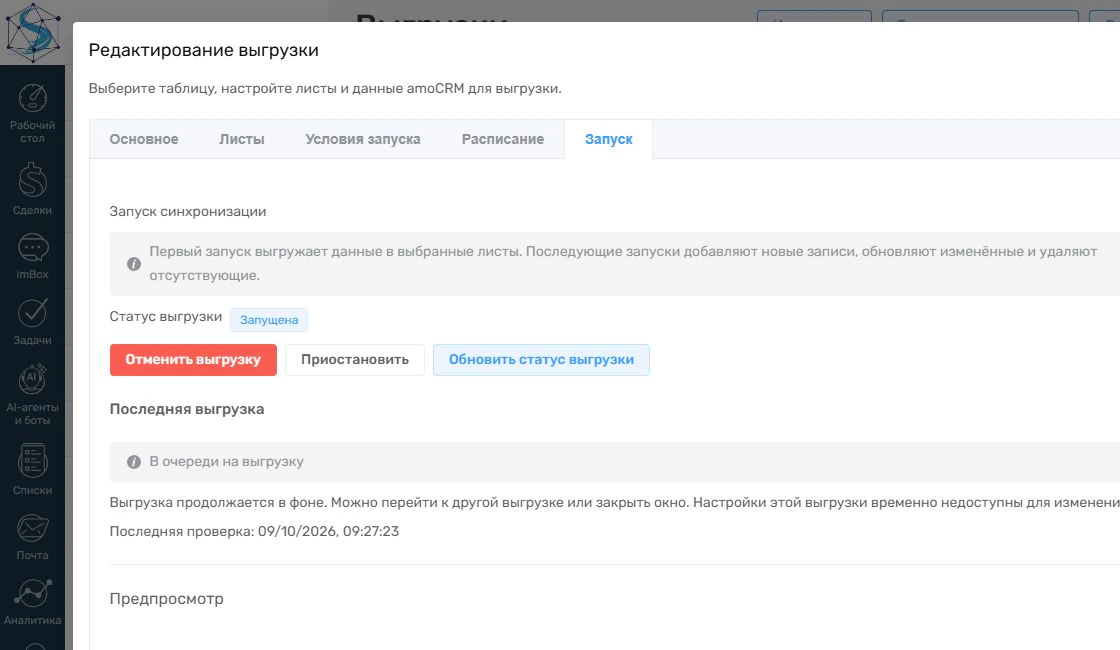
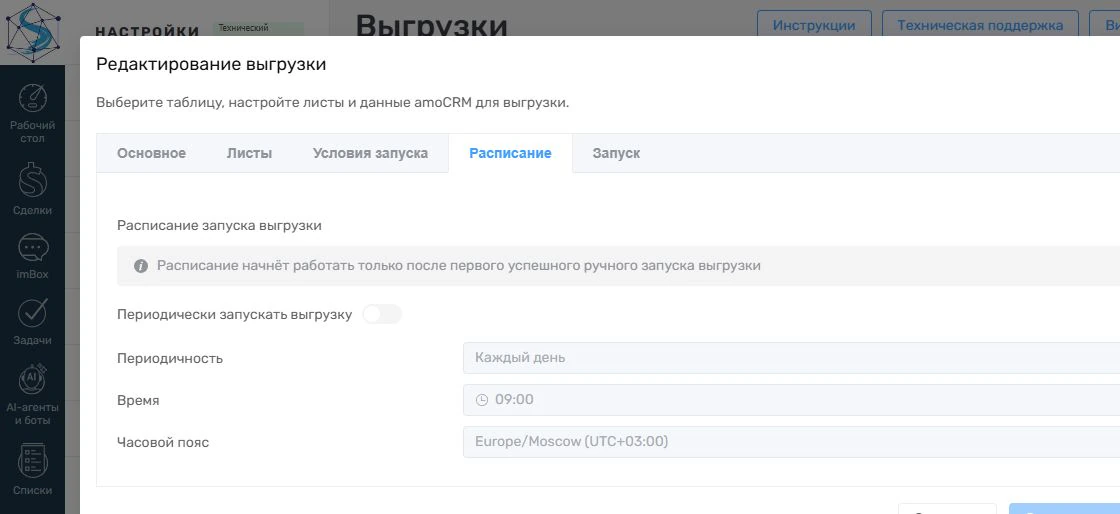
Manually or scheduled: every hour, every day or every week, with a choice of time zone. The schedule starts working only after the first successful manual launch
What happens when you re-upload?
New entries are added, changed entries are updated. Rows of records that are deleted in CRM or no longer match the filter are removed from the managed area. Therefore, it is better to use separate sheets for unloading.
Is it possible to check the data before writing it to the table?
Yes, the preview shows up to 10 rows with the current settings without writing them to Google Sheets. Check columns, formats, formulas and filters, then save and start uploading
Is it possible to change amoCRM data through a table?
This widget is designed for uploading from amoCRM to Google Sheets. His described scenario is creating and updating a table from CRM data, rather than writing back changes to amoCRM
What to do if the upload is interrupted?
Update the status first without creating a rerun. Some of the sheets may have already been written down. Correct access or settings and use startup repair if available, or contact support